Technical Essay
Why You Can’t Click to Place Your Cursor in a Terminal
The 1978 architecture decision that still shapes how 50 million developers work.
2 March 2026 · 10 min read
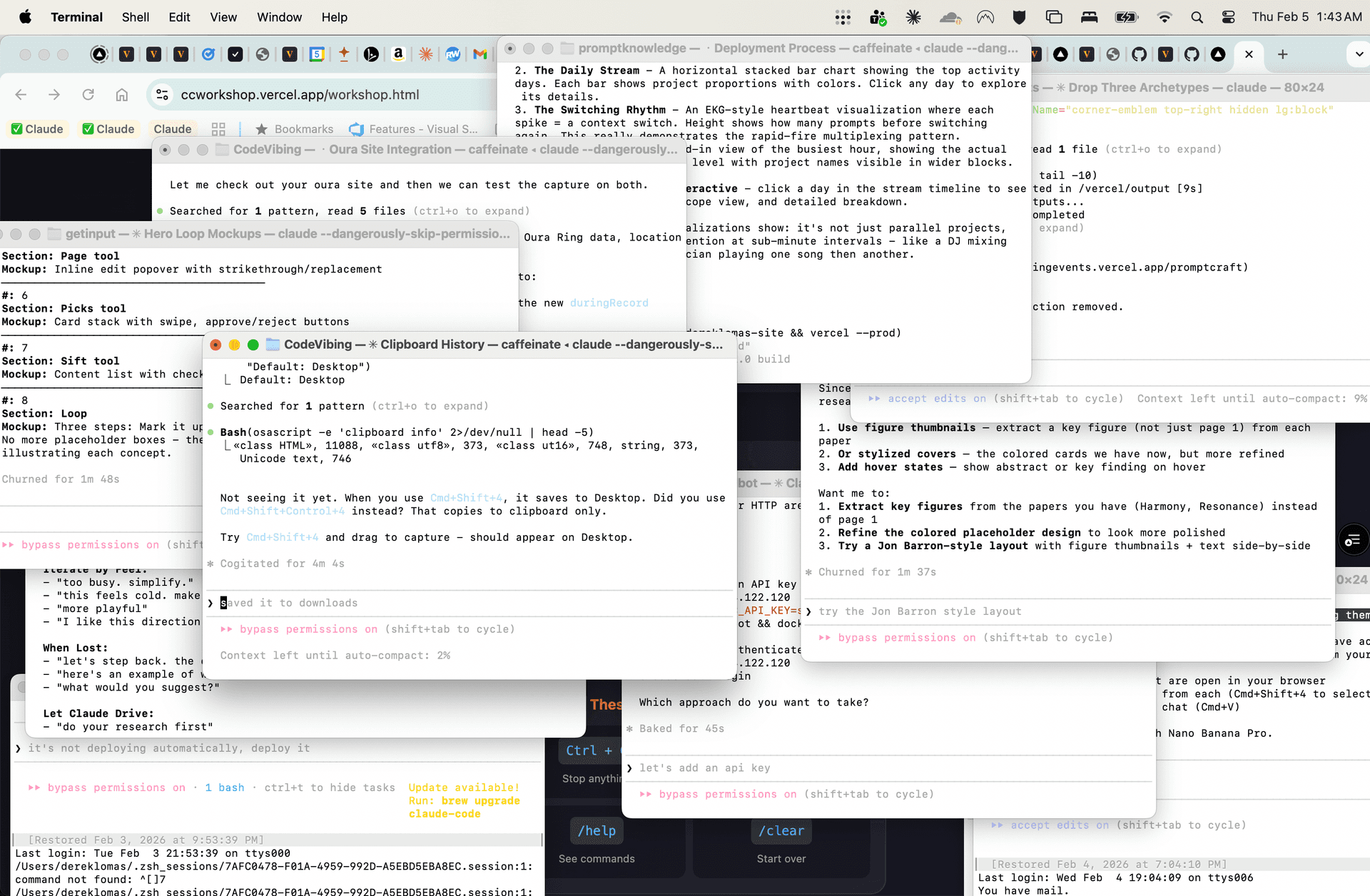
I had used a terminal maybe a few dozen times before November 2024. Then Claude Code happened, and now I spend more time in the terminal than in any other application — including my web browser. On any given day I have 15 to 25 terminal windows open, each running a different AI coding session.
And every day, I try to click somewhere in the text I’m typing and place my cursor there. It doesn’t work. I try to highlight a word and type over it. That doesn’t work either. These are things I do in literally every other application on my computer — my browser, my text editor, my notes app, even the search bar in Finder. But the terminal, the application I now use the most, can’t do it.
I went looking for a terminal that could. I tried Ghostty, iTerm2, Warp, Kitty. None of them support it. I asked on Hacker News. The responses split into two camps: “that’s not the terminal’s job” and “of course it’s the terminal’s job.” Both are right. The explanation is weirder than either camp realizes.
The Character Grid
A terminal emulator is, at its core, a screen made of characters. Think of a spreadsheet where every cell is exactly one character wide. The terminal has one job: receive bytes from a program, interpret them as characters and control codes, and draw them on the grid.
This design comes from the DEC VT100, released in the late ’70s. The VT100 was a physical device — a screen and keyboard connected to a remote computer via a serial cable. The computer sent characters down the wire. The VT100 drew them. The user typed. The VT100 sent those keystrokes back up the wire. That was the entire contract.
Every modern terminal emulator — Ghostty, iTerm2, Terminal.app, Windows Terminal, Kitty, Alacritty — still implements this same contract. They are software pretending to be a VT100. The program running inside the terminal (your shell, vim, python, Claude Code) sends escape codes like \e[12;5H meaning “move the cursor to row 12, column 5” or \e[31m meaning “switch to red text.” The terminal obeys. It doesn’t ask why.
The Blindness Problem
The terminal emulator does not know what is on screen.
It draws the screen, so how can it not know? But the terminal only knows what characters are at which grid positions. It does not know what those characters mean. When you see this:
You see a prompt, a command, and a string argument. The terminal sees 58 characters on row 24. It doesn’t know where the prompt ends. It doesn’t know that $ is a prompt delimiter. It doesn’t know which characters you typed and which were printed by the system. It doesn’t know that fix the bug is inside a quoted string that you might want to edit.
So when you click on the “b” in “bug,” the terminal receives a mouse event at column 52, row 24. Now what? To place a cursor there, it would need to:
- Figure out that column 52 is inside editable text (not part of the prompt, not output from a previous command)
- Determine that the program currently accepting input is zsh (not vim, not python, not Claude Code)
- Calculate how many arrow-key presses it would take to move zsh’s cursor from its current position to that location
- Send those fake keystrokes to zsh
- Hope zsh interprets them correctly
Step 1 is the wall. The terminal genuinely cannot distinguish editable text from anything else on screen. It’s all just characters on a grid.
Why This Is Different from Every Other Application
In a web browser, when you click on a text input, the browser owns that input field. It knows the field exists, where it starts and ends, what text is in it, and where your cursor should go. The browser is both the renderer and the editor.
In a terminal, the renderer (the terminal emulator) and the editor (the shell) are different programs communicating through a pipe. The terminal renders but doesn’t edit. The shell edits but doesn’t render. Neither has the full picture.
It’s as if your web browser could only display a video feed of a remote desktop, and every click had to be translated into a sequence of keyboard shortcuts and sent to the remote machine. You’d never expect click-to-edit to work in that setup. But that’s exactly what a terminal is.
The Two Programs Problem
It gets worse. The terminal doesn’t even know which program is running inside it. When you launch a terminal, it starts your shell (zsh, bash, fish). But the shell launches other programs — git, python, vim, ssh — and those programs take over the terminal. Each one handles input differently.
In zsh, pressing the left arrow moves your cursor left in your command. In vim, pressing the left arrow (or h) moves left in normal mode but inserts a character in insert mode. In python’s REPL, the left arrow works, but only on the current line. In ssh, the left arrow is forwarded to whatever’s running on the remote machine.
The terminal can’t implement “click to place cursor” without knowing which program is running and how that program handles cursor movement. And no reliable mechanism exists for the terminal to ask.
“Highlight to Delete” Is Even Harder
Click-to-place-cursor is hard. Select-and-type-to-replace is nearly impossible.
In a text editor, selecting text and pressing a key replaces the selection. This requires the application to know: what text is selected, that the user intends to replace it, and how to delete the old text and insert the new text atomically. The terminal has none of this.
The terminal can do text selection (drag to highlight, Cmd+C to copy). But that selection lives entirely in the terminal emulator. The shell has no idea anything is selected. Selection in the terminal is a screen-level operation, like selecting text in a screenshot. It doesn’t correspond to any editable state in the running program.
To implement “highlight and delete,” the terminal would need to translate a visual selection on its character grid into the correct sequence of shell editing commands (move cursor to start, hold shift, move to end, delete) — which vary by program, mode, and configuration. It’s the “remote desktop video feed” problem again, but worse.
Partial Solutions
Some programs have chipped away at the edges of this problem:
Shells can advertise prompt boundaries. The OSC 133 escape sequence lets a shell tell the terminal “the prompt ends here, user input starts here.” iTerm2 and Ghostty support this. It solves step 1 of the click-to-place problem — but only for the shell, and only when the shell has been configured to emit the sequence.
Warp reinvented the input model. Warp treats the command input as an actual text editor, separate from the terminal output. You can click to place your cursor in Warp. But Warp achieves this by not being a normal terminal — it intercepts input before the shell sees it. This works for the shell prompt but breaks when you launch vim or ssh or anything else that expects raw terminal input.
Kitty’s keyboard protocol provides richer keystroke information to applications that opt in. This doesn’t directly solve clicking, but it’s a step toward terminals and applications having a shared understanding of input state.
Mouse reporting modes (SGR, X10) let the terminal forward mouse clicks to the running application. This is how vim and tmux handle mouse input — they opt in to receiving mouse events and implement their own click handling. But your shell doesn’t do this by default, and even when it does (zsh has mouse support), the experience is spotty.
What Would Actually Fix It
The real fix requires programs to tell the terminal about editable regions. Imagine an escape sequence like:
\e[?2048h <field row=24 col=33 len=24 type=text>
With this, the terminal could render a real input field overlay at that position. Clicking would work. Selection would work. The terminal would own the editing, and only send the final text back to the program when the user presses Enter. Like an <input> element in HTML.
This is essentially what Warp does, but hardcoded for the shell prompt. A general-purpose protocol would let any program declare input fields — your shell, a database REPL, an AI coding agent asking for confirmation. Every terminal emulator could implement native text editing for those fields.
But adoption would require every shell, every CLI tool, and every terminal to agree on the protocol. In an ecosystem where we’re still arguing about whether terminals should support ligatures, that’s a generational project.
Living with the Grid
So here we are in 2026, using AI to write software through an interface designed for connecting teletypes to mainframes. The irony isn’t lost on me. Claude Code — maybe the most advanced consumer of terminal I/O ever built — is still bound by the same character grid that constrained DEC engineers almost fifty years ago.
The terminal survives because the contract is so simple. The VT100 contract is universal: any program that can write bytes and read keystrokes can use a terminal. That universality is why we still use terminals at all, instead of building bespoke GUIs for every tool. It’s a lowest-common-denominator interface that happens to be good enough for almost everything.
Almost. The one thing it’s not good enough for is the thing every other application on your computer has done since the original Mac: letting you click where you want to type.
Tools like cmux and Ghostty are pushing the edges — better window management, notifications that tell you which of your 25 AI sessions needs attention, integrated browsers for visual feedback. They’re making the terminal livable for the AI coding era. But the character grid remains. Whoever cracks the input field protocol will change how every developer on Earth works.
Sources
- DEC VT100 — Wikipedia
- VT100 User Guide — DEC, 1982 (bitsavers.org)
- The TTY Demystified — Linus Åkesson
- XTerm Control Sequences — Thomas Dickey
- Semantic Prompts (OSC 133) — Per Bothner
- Shell Integration — iTerm2
- Why Is Terminal Input So Weird? — Warp
- Keyboard Protocol — Kitty
- MacWrite — Wikipedia (click-to-edit since 1984)